PNG to JPG: make the right opaque export
Choose the output for the application that will use it. This guide explains the settings, the limits and the checks that turn a completed conversion into a usable file.
In this guide +
Convert a PNG photo to JPG with a deliberate trade-off
PNG to JPG is useful for an opaque photograph or a form that specifically asks for JPEG. It changes the storage method to lossy JPEG and can change visible fine detail. It is not a universal improvement for every PNG. Screenshots, diagrams and text often benefit from keeping a lossless working format.
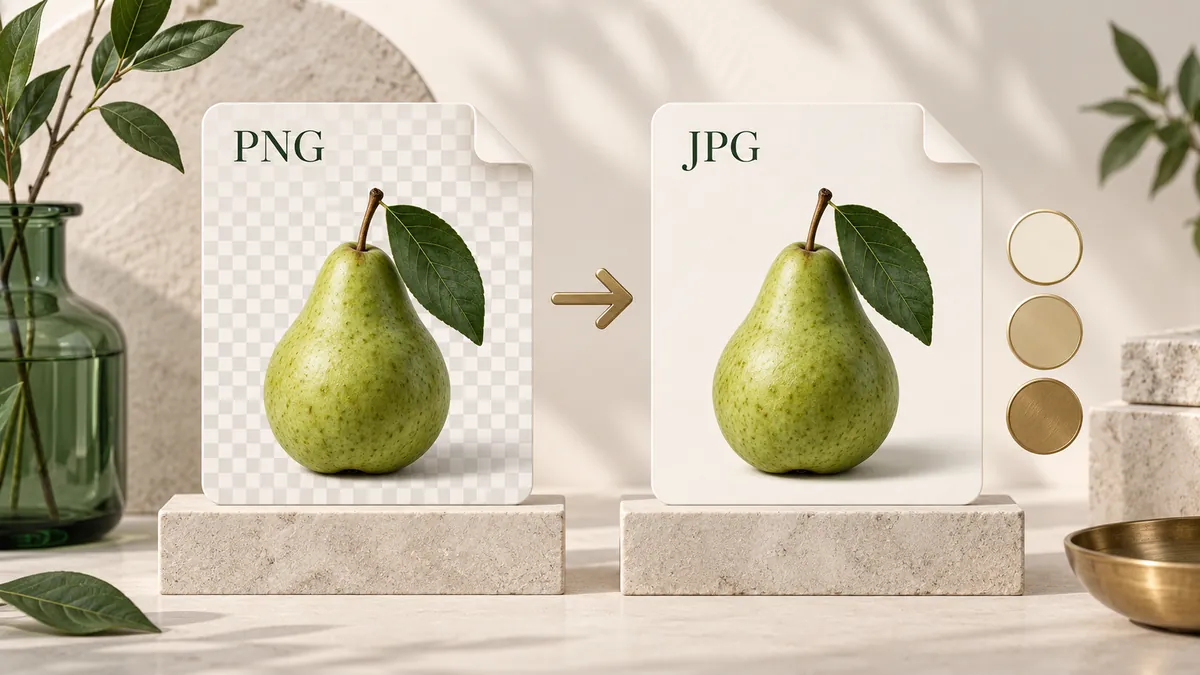
Identify whether transparency is real before starting. A white background may be opaque, while a product shadow can be partially transparent. The JPG result is opaque in both cases. Keep the source PNG so you can change the matte color later without trying to reconstruct the original cutout.
Choose the background before making a JPG
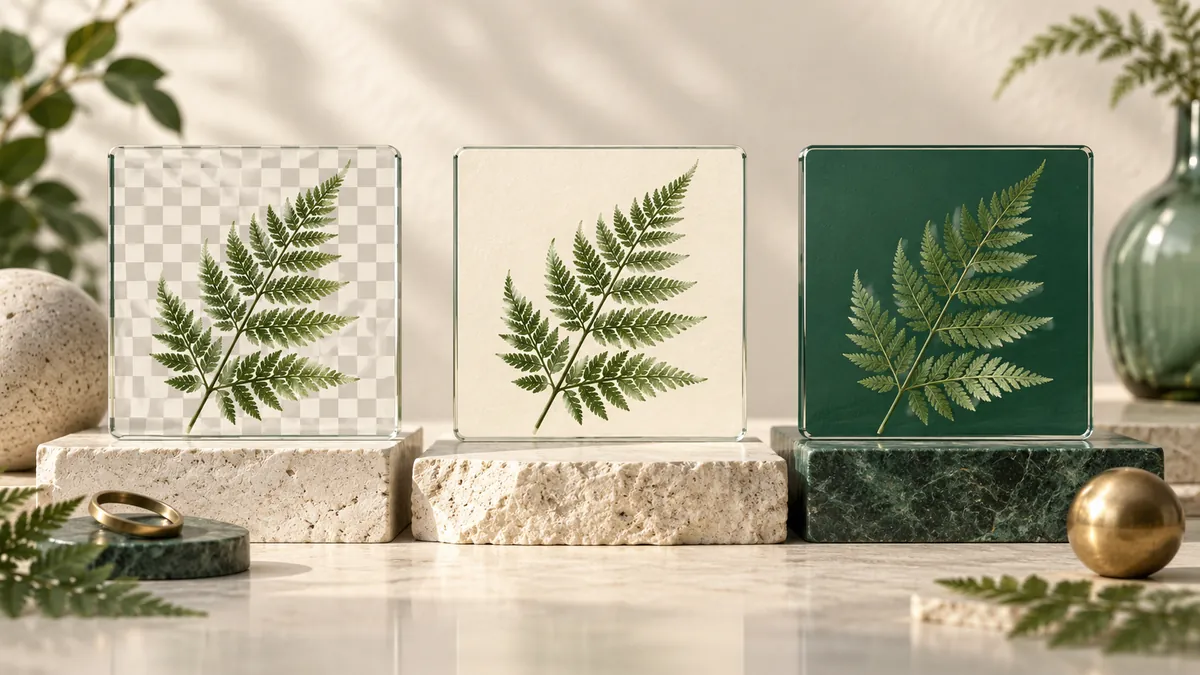
JPG does not carry an alpha channel. This converter composites transparent and partially transparent pixels against the color selected in the background control; white is the default. Choosing the background is a visual decision, not just a technical setting. A shadow around a product can look natural on white and conspicuous on a saturated color.
Select the intended background, convert one representative image and inspect the result. If the destination card uses a different color, re-export from the original transparent source. Changing a JPG back to PNG will not undo the composite: the background has become ordinary opaque pixels. Keep the transparent original for future deliveries.
Transparent pixel + chosen background → opaque JPG pixel. The original alpha is not recoverable from that composite.
Reference: MDN: PNG, JPEG & WebP
Use quality as a comparison setting, not a percentage of detail
The default quality is 82, with presets at 92, 82 and 65 and a custom control. These values are encoder settings. A value of 82 does not mean that 82% of the original detail survives, nor does it promise a particular file size. Content and the active encoder affect the visible result and the byte count.
Make a comparison from the same source at two settings. Check small text, sharp edges, hair, texture and gradients at the size you will actually use. Prefer the smaller output only if the visible change is acceptable. A higher setting cannot restore detail already discarded in the source, and settings from different formats are not directly equivalent.
Protect text, diagrams and colored edges
JPEG compression can make thin lettering and high-contrast edges look different from the PNG source. Inspect small labels, colored type on a pale background and closely spaced lines at 100% zoom. A preview fitted to a narrow screen can hide these changes, so open the downloaded file at its native size.
Raise quality if the result loses useful detail, but compare the larger file with the destination cap. If PNG is accepted and preserves the content better, keeping PNG can be the better decision. If a compact transparent delivery is needed, consider PNG to WebP and verify that the destination accepts it.
Dimensions, orientation and the size of the preview
Changing the format does not resize or crop the image. A 2400 × 1600 landscape stays at that pixel size. An orientation tag can require a rotation or a reflection; when a portrait is rotated into its visible orientation, width and height may exchange places. That is an orientation correction, not a reduction in resolution.
The preview is fitted to the available space and can use a smaller display copy. Judge output dimensions from the downloaded file, not from how large it appears on your screen. For print work, also check the required physical size and resolution in your design application; a format conversion does not prepare a complete print specification.
EXIF, GPS, color profiles and what is not preserved
The output is a newly encoded image. Original EXIF, GPS and XMP records are not copied; an encoder may add its own technical fields. Orientation is applied to the image rather than relying on the original orientation tag in the download. Keep the original if you need camera settings, capture dates or an archival record.
Working pixels use an sRGB canvas where supported. Exact source ICC profiles, HDR information and 16-bit precision are not retained. A screen that looks similar is not proof of identical color data. For calibrated print, scientific measurement or preservation of high-bit-depth originals, use a workflow designed for those requirements.
The limits before you start
The converter accepts still images within all of the limits below. They are admission limits, not performance promises. A queue can be accepted and later produce a larger result that cannot be retained or packed into one archive. Save individual completed files when a ZIP is unavailable.
MiB means 1,048,576 bytes. A ZIP also has a working-memory limit, so the byte cap alone does not determine availability.
| Resource | Maximum |
|---|---|
| Files in one queue | 10 |
| Each source file | 20 MiB |
| Total source / total retained results | 100 MiB / 100 MiB |
| Pixels in each image | 16,000,000 |
| Width or height | 8192 px |
| ZIP download | 64 MiB; 32 MiB in smaller-limit mode |
Why a small file can still need substantial memory
Encoded file size and working memory measure different things. A 4000 × 3000 image contains 12 million pixels. One ordinary RGBA buffer uses four bytes per pixel: 48,000,000 bytes, or about 45.8 MiB. Decoding, previewing, encoding and retaining the result can need additional buffers. This calculation is a baseline, not a measured peak.
That is why a compressed file below the byte limit may still exceed the pixel limit. Start with one large image on a phone, save it, then clear the queue before the next group. Closing other heavy tabs can help, but passing a limit check does not guarantee that every device has enough memory to finish.
Local processing: what stays on your device
Selecting a file gives this page access to the selected image so it can decode and convert it in your browser. Source files, filenames, pixels, previews, EXIF and clipboard images are not sent to a conversion server or telemetry by this tool. ZIP creation also runs on the device. No account is required.
Local image processing does not mean that opening the website makes no network requests. The browser still requests the page, scripts and codec assets, and the host can receive ordinary connection information. Cookie Settings describes the available optional purposes and lets you change your choice. Keep sensitive downloads under your own device and storage controls.
Troubleshooting by symptom
Read the specific message before changing settings. A wrong format, an animated input and a memory limit need different fixes. Renaming a rejected file or repeatedly clicking Convert does not address the cause. Save completed results before clearing or reloading a queue.
| Symptom | What to check | Try this |
|---|---|---|
| File rejected | Actual format, animation, bytes and dimensions | Choose the matching tool and a supported still image |
| Conversion stops | Device memory or a decode/encode error | Retry once with one file; use a smaller source if needed |
| ZIP unavailable | Archive byte cap and memory budget | Download individually or split the group |
| Background remains | Opaque pixels rather than alpha | Use an image editor if background removal is needed |
| Page works, tool does not | JavaScript, blocked assets or browser support | Allow required site assets and try a current browser |
A practical check before you use the result
A successful download is the start of the final check. Open the output in the application that will actually use it. A slide editor, upload form and image viewer can handle the same file differently. Checking the intended destination catches problems that the browser preview alone cannot reveal.
- Confirm the extension and that the destination opens the image without an error.
- Check width, height and visible orientation; compare them with the original.
- Inspect fine text, diagonals, hair, shadows and gradients at 100% zoom.
- Place transparent graphics on both a light and a dark background.
- Compare the actual byte size with the destination limit before submitting.
- Keep the source until every downloaded file has been checked.